

Payroll
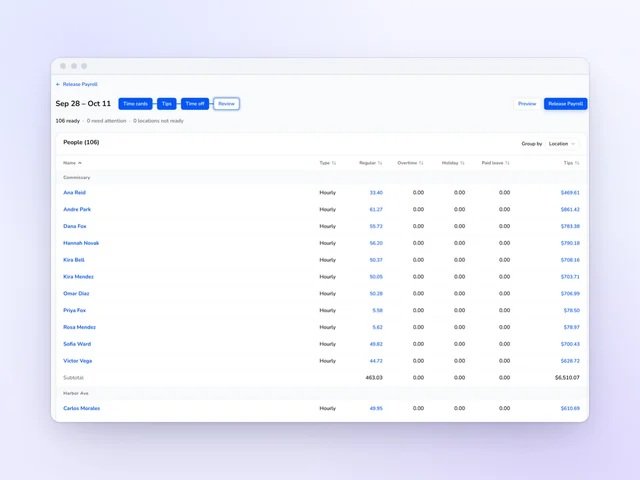
Review hours and tips side by side, then release payroll from Kronto without retyping a time card.
See moreTime and attendance
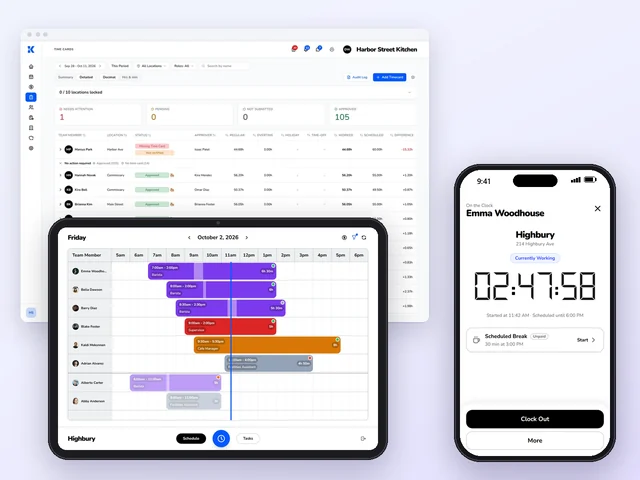
Time cards are done when the shift is. Your team clocks in on the tablet or their phone and signs off on their own hours at clock-out. You see each card next to the shift you scheduled and approve the day with a tap.
Under 5 minutes a week on time cards for a typical Kronto manager
Source: Kronto customer data, time per manager per week, as of October 2026
No credit card requiredFree for up to 10 people
Stop chasing time cards
Each person certifies their hours before they leave.
Catch the missed punch
Worked hours sit next to scheduled hours, person by person.
Approve the week in one pass
Approve or return each day, or every submitted card at once.
Skip the retyping
Hours reach payroll in Kronto or your provider's file.
Time and attendance
Kronto is the time clock and time card software that gets hours approved without chasing anyone. Your team clocks in, takes the breaks on the schedule and submits the card on the way out. You approve the clean days in one click and spend your time on the ones Kronto flags. Every edit is signed and kept in the audit log.
Time clock
Someone's always early, and early punches add up. Clock-in opens a set number of minutes before each shift, wider or narrower for the roles you pick. On the location's tablet, each person taps their name and enters a 4-digit PIN, and today's schedule shows who's in, on break, late or missing a clock-out. Phones, the tablet or both: you choose, and Kronto holds to it.
If you allow unplanned work, someone without a shift can send a request to clock in instead.
Breaks and clock-out
Breaks come from the rules you set for each role, paid or unpaid. Turn on minimum break time, and a break can't end early.
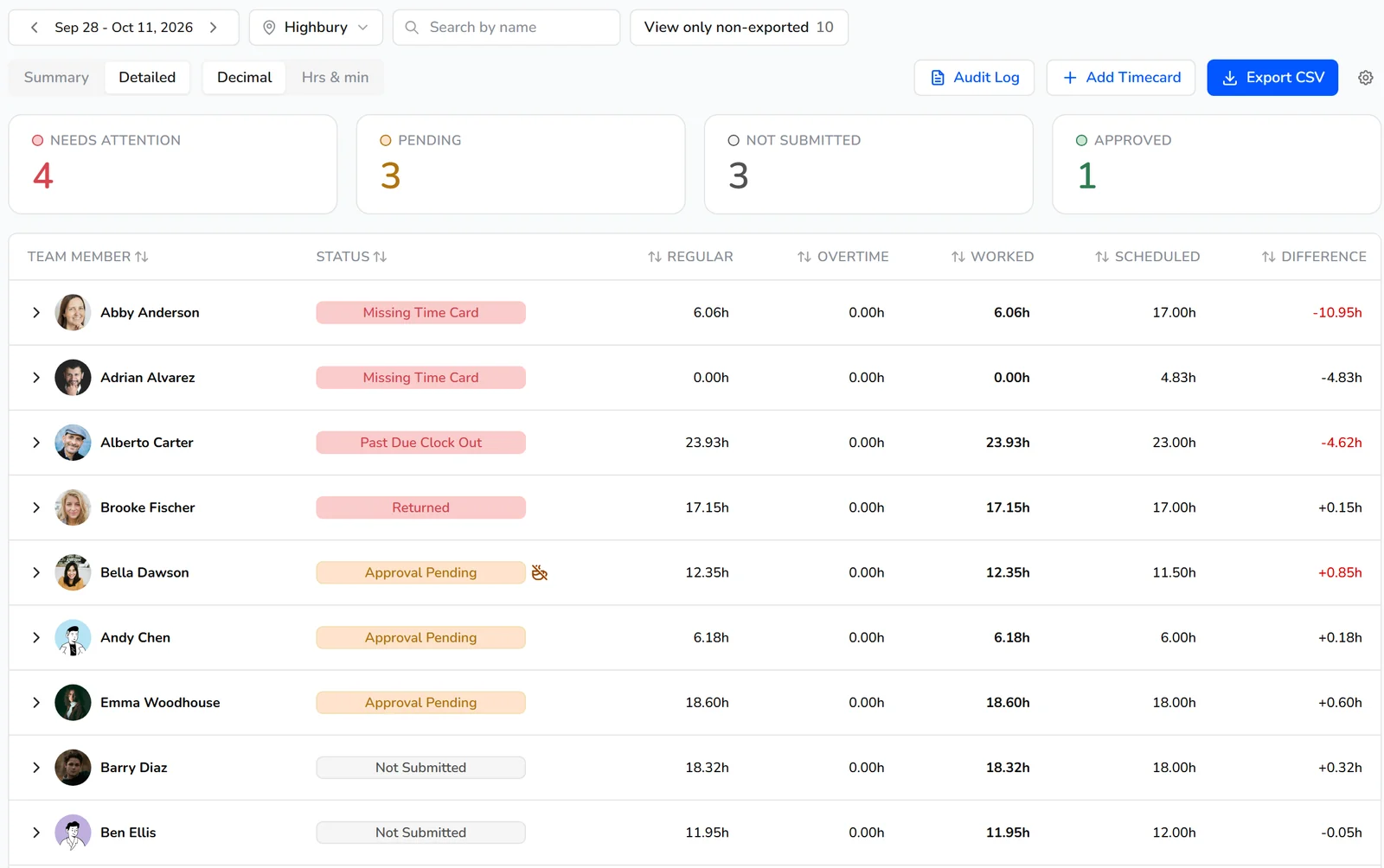
At clock-out, Kronto asks about any scheduled break that wasn't clocked. The team member signs that they took it, waived it or weren't given it, and says why. Then they review the day's punches and tap Submit & Certify. A wrong time gets edited with a reason, and a manager accepts or rejects it.
Approvals
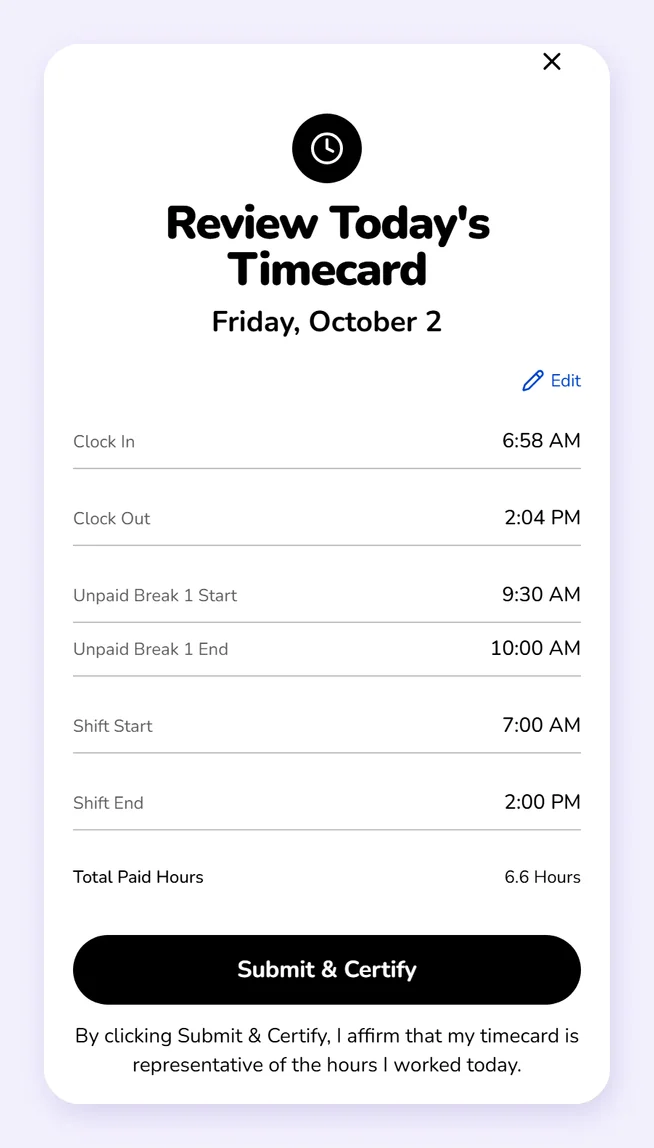
The Time Cards page lists everyone for the week or pay period, with the cards that need attention on top. Each row puts hours worked beside hours scheduled, split into regular, overtime, holiday and time off. Icons mark a missed break, an unplanned break, a change nobody acknowledged or a role with no pay rate.
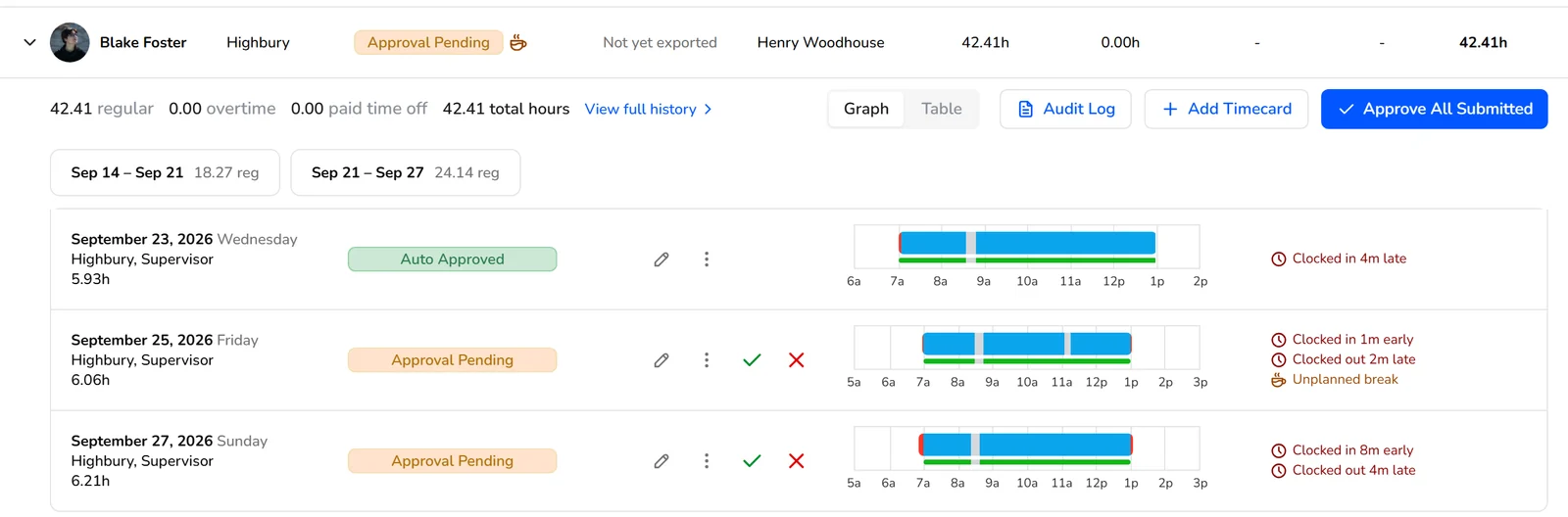
Open a person to see each day's punches drawn over the scheduled shift, then approve it or send it back with a reason. Turn on auto-approval, and a card that lands within your tolerance, breaks taken, approves itself.
Audit trail
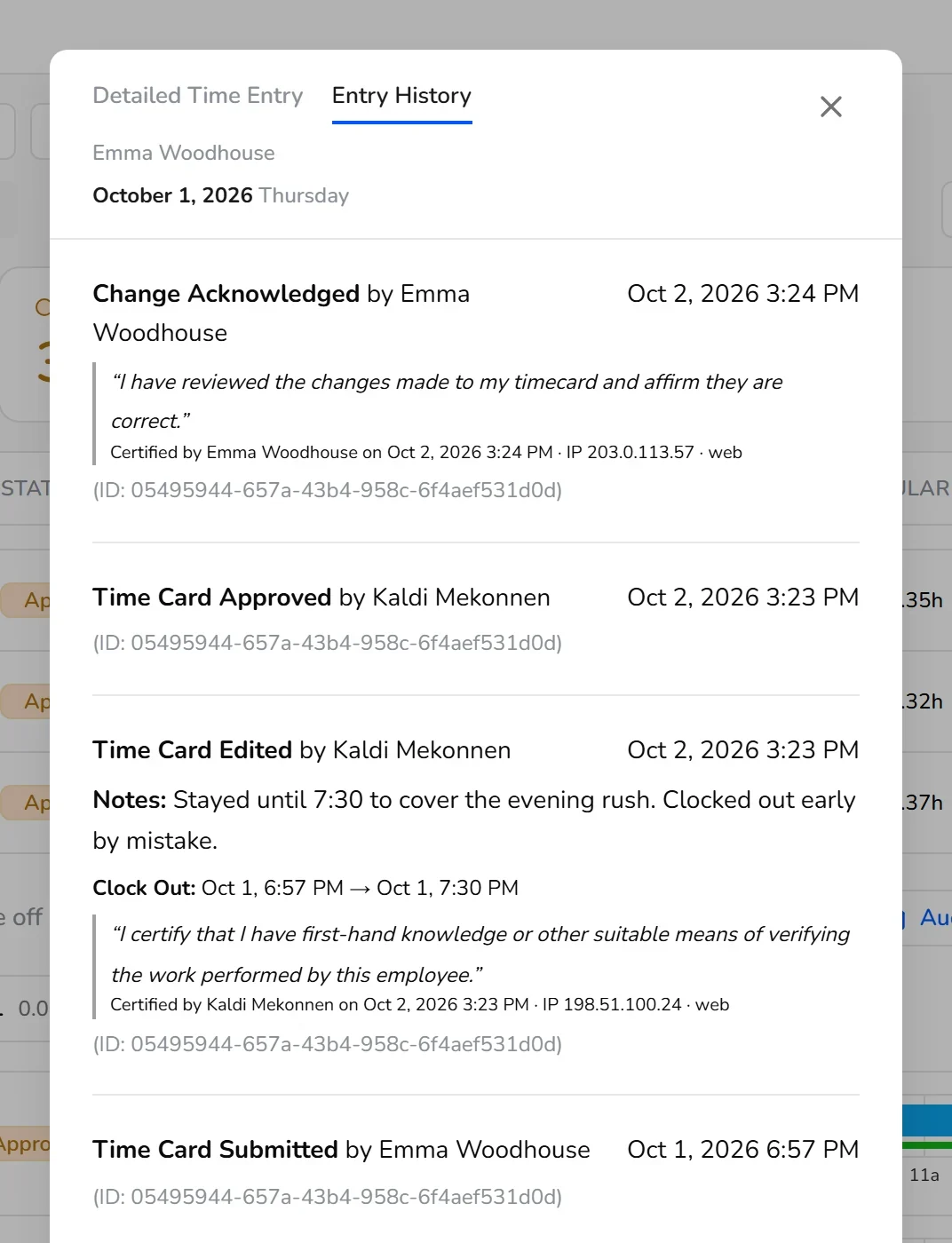
Kronto records every clock-in, break, edit, approval, return and export with who did it and when. Open the audit log for the whole period, or one card's entry history.
A manager who edits hours certifies they can verify the work, and the team member is asked to affirm the change. A shift that didn't happen can be voided with a reason, such as an excused absence. It stays in the history, out of pay, and can be restored.
Payroll export
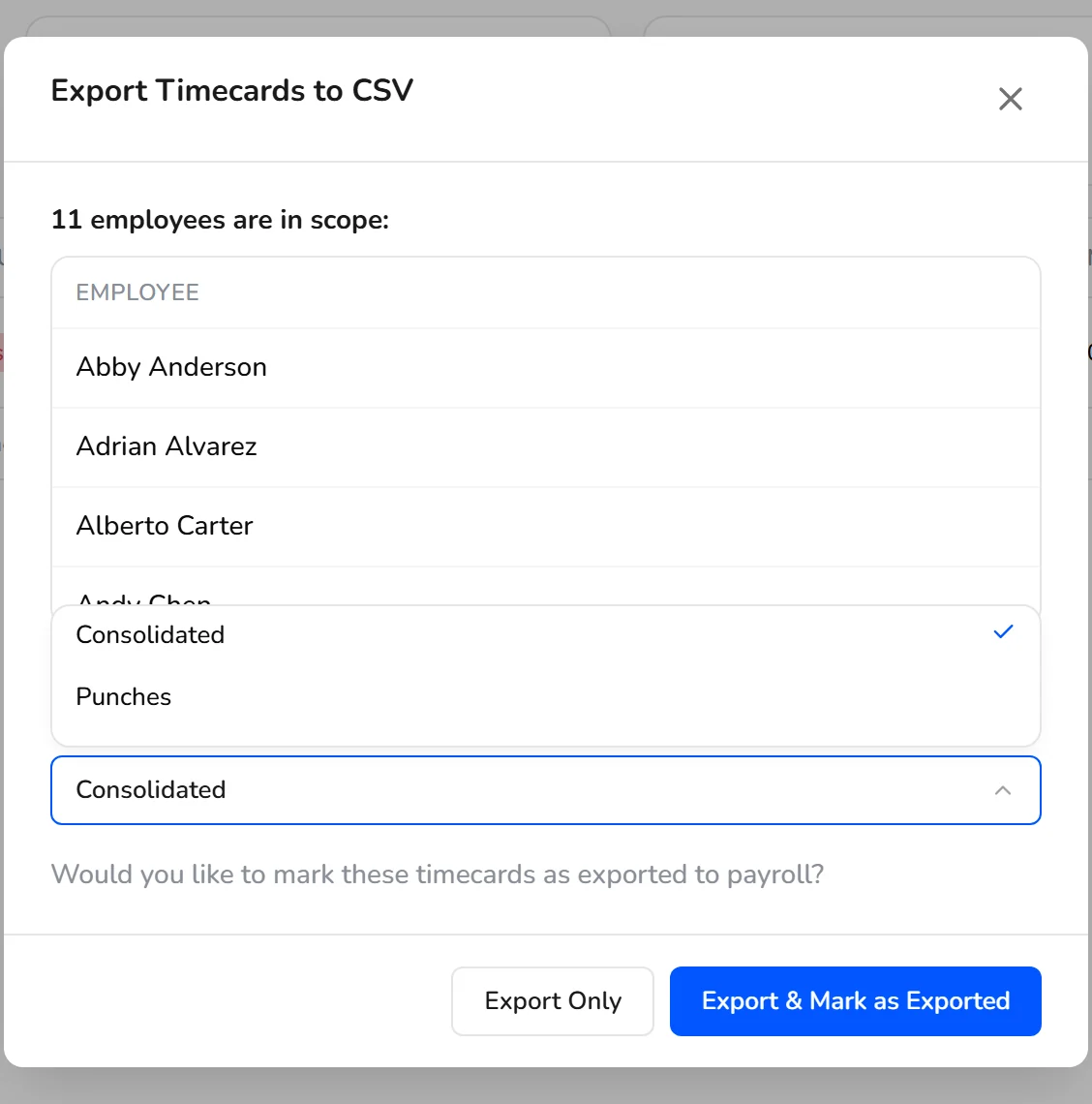
When the period closes, Export CSV builds the file from approved time cards. If some aren't approved yet, Kronto tells you how many people that affects, and you review them first or export the rest.
Approved hours export as a file for Paychex, Paycom or the provider you already use: one row per person and role, or one per punch. A missing pay rate gets caught before the file leaves. Every exported card is marked, and you can see at a glance who's still left.
Kronto managers typically spend under 5 minutes a week on time cards. Team members submit and certify their hours as they clock out, worked hours sit next to scheduled hours, and Approve All Submitted approves the week in one pass. Source: Kronto customer data, time per manager per week, as of October 2026.
On their phone in the Kronto app, or on the location's tablet with a personal PIN. Every punch lands on their time card.
Yes, on every plan. Export CSV builds a payroll file from approved time cards, as one consolidated row per person, role and location, or one row per punch. Paychex and Paycom files always use the punch format. On Pro, in early access, you can run payroll in Kronto instead, with approved hours already in it.
Hours signed at clock-out, approved in one pass
We'll show you a week of hours next to the schedule, and how to approve it without opening every card.
No credit card requiredFree for up to 10 people